Updated September 27, 2026
Your first Gloomberb session
Build a market workspace in the desktop app or terminal UI in ten minutes.
What you will build
Search Apple, open a five-year chart, add market movers, name the layout. Desktop and terminal use the same commands.
Not installed yet? Install and update.
Desktop walkthrough
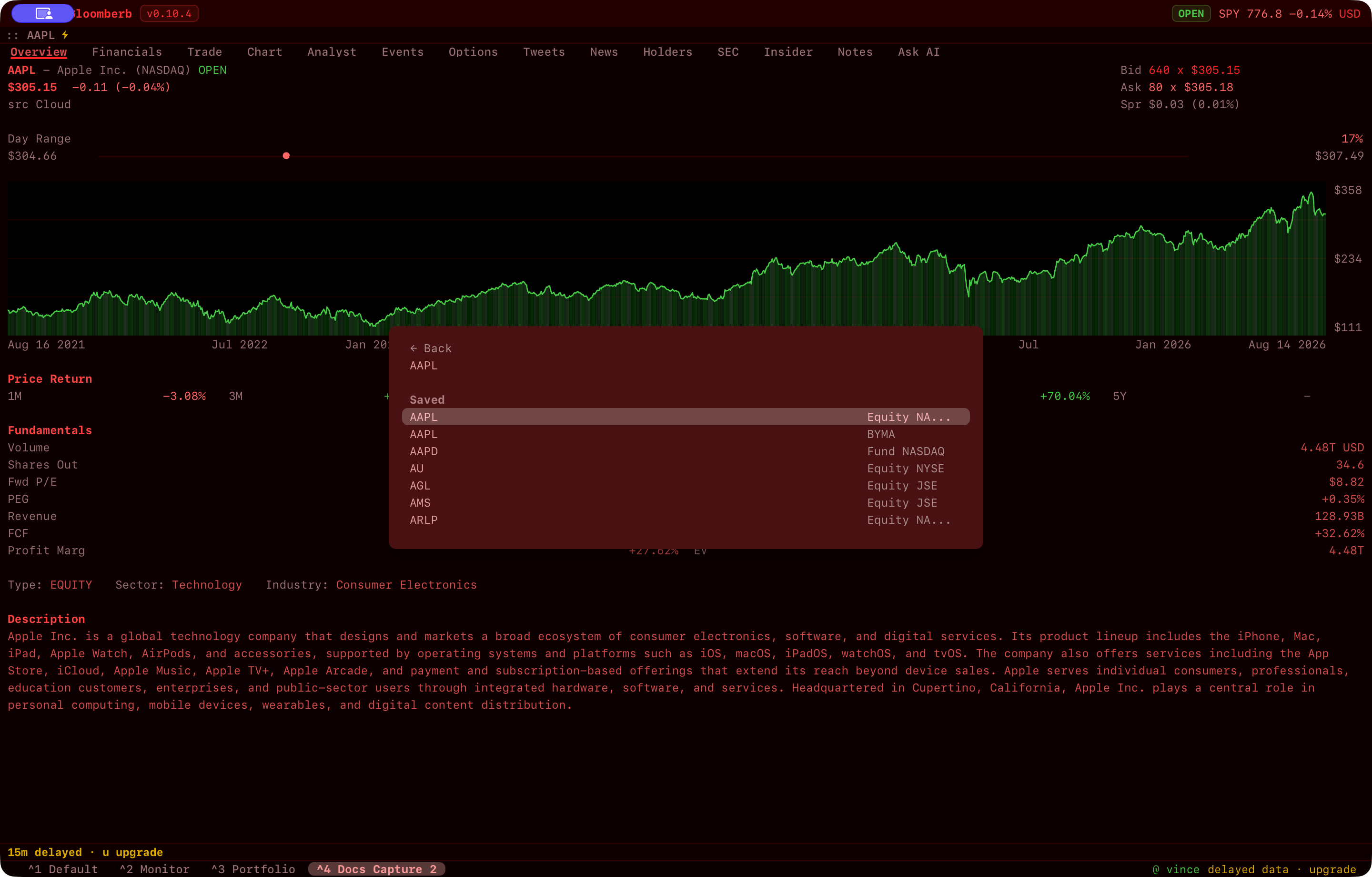
1. Find a ticker
Press backtick. Type Apple or AAPL, pick the NASDAQ listing, press Enter.
2. Open a price chart
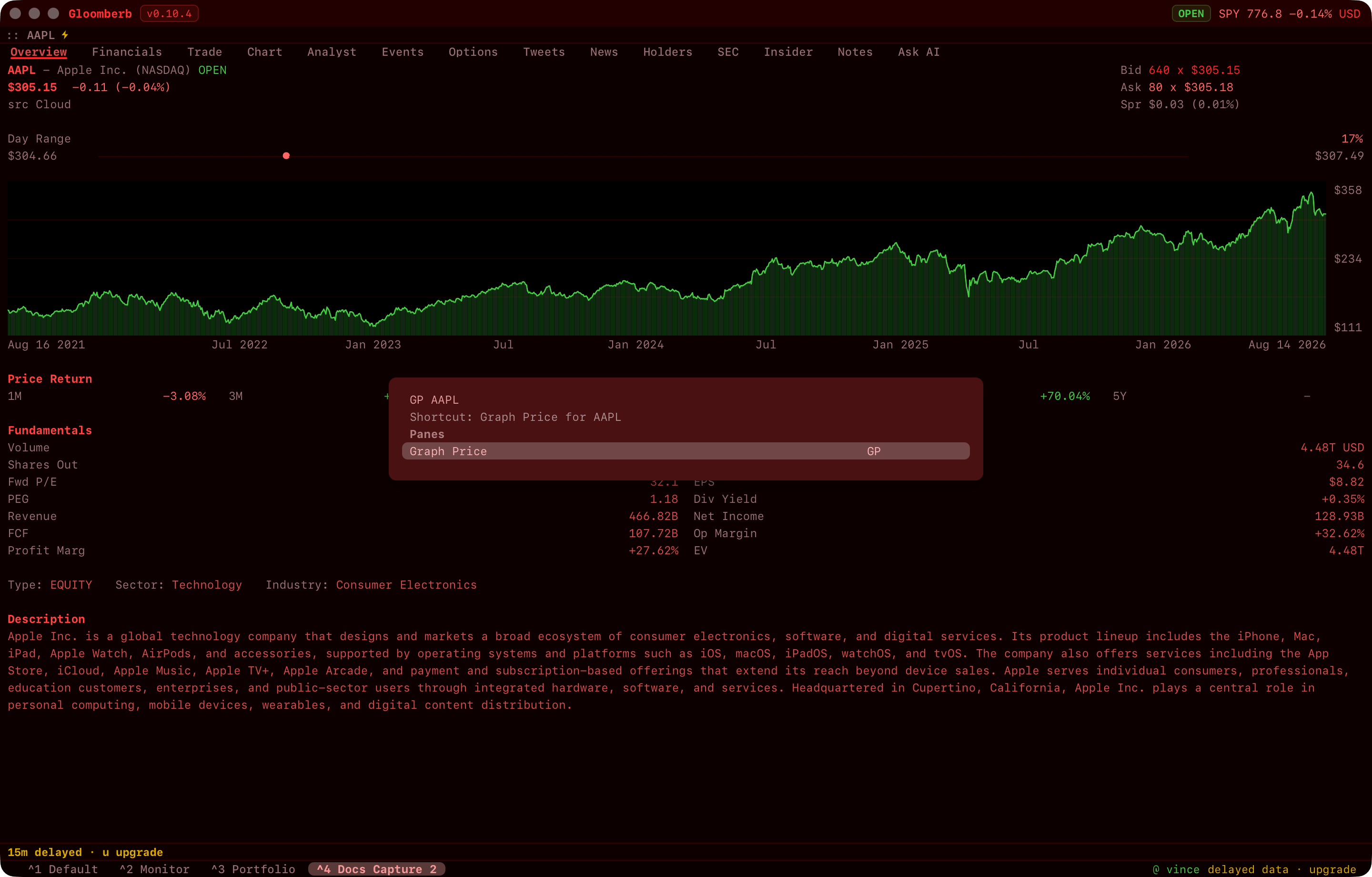
Press Cmd+K (macOS) or Ctrl+K (Windows). Type GP AAPL, press Enter.
GP is the Graph Price shortcut. Forgot the prefix? Search Graph Price instead.
3. Add a market view
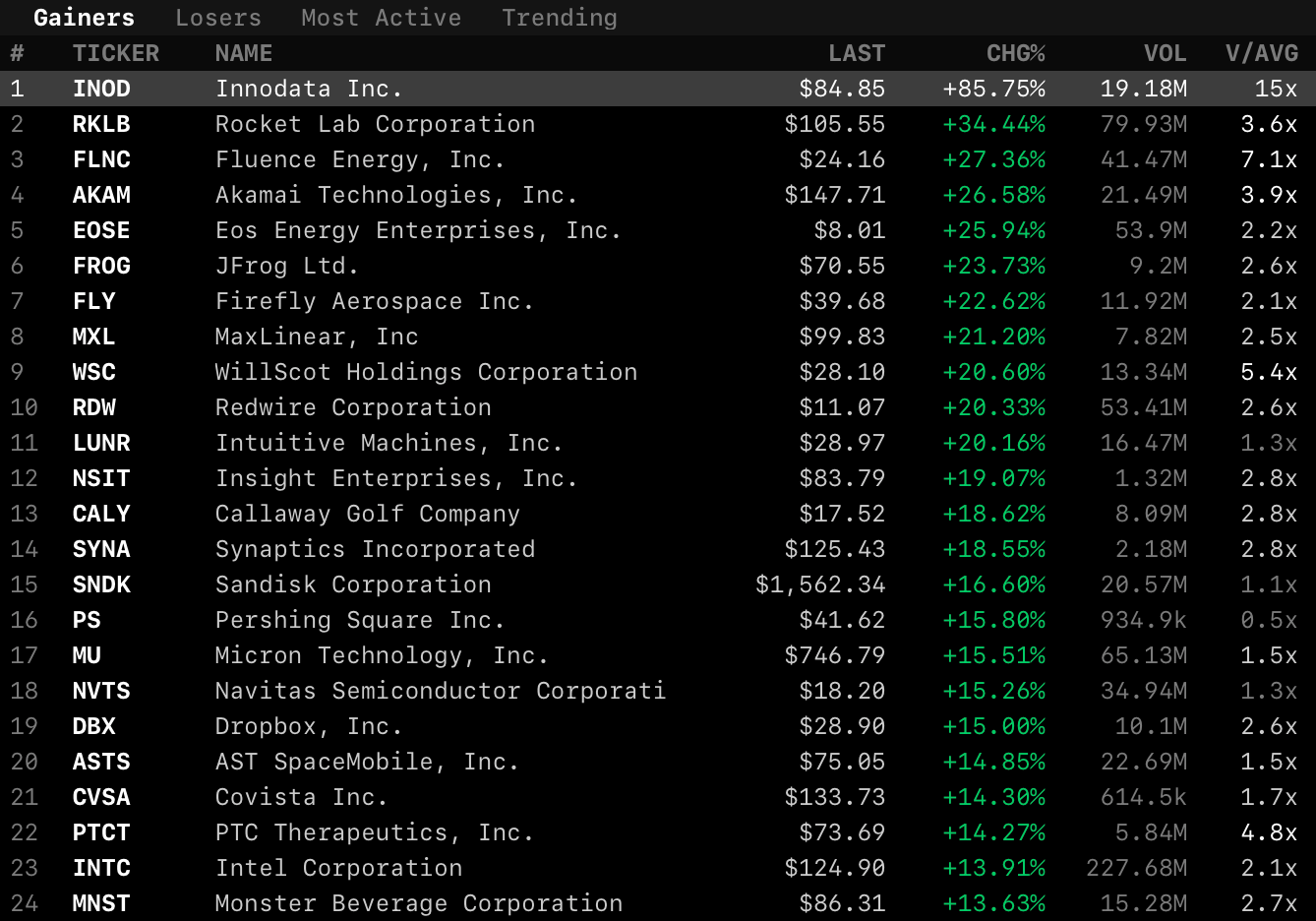
Command bar again: MOST, Enter. Market Movers opens with gainers, losers, active names, and trending tickers.
4. Arrange the panes
Drag headers to move, drag edges to resize, or run GL to tile everything.
Tab / Shift+Tab moves focus.
5. Name the layout
The layout saves as you go. To name it, search Rename Layout in the command bar and type Morning Research. Switch layouts with Ctrl+1 through Ctrl+9.
Terminal walkthrough
Run gloomberb and follow the same five steps. Commands open with Ctrl+K or Ctrl+P; GL arranges the panes. Chart not rendering? See troubleshooting.
Result
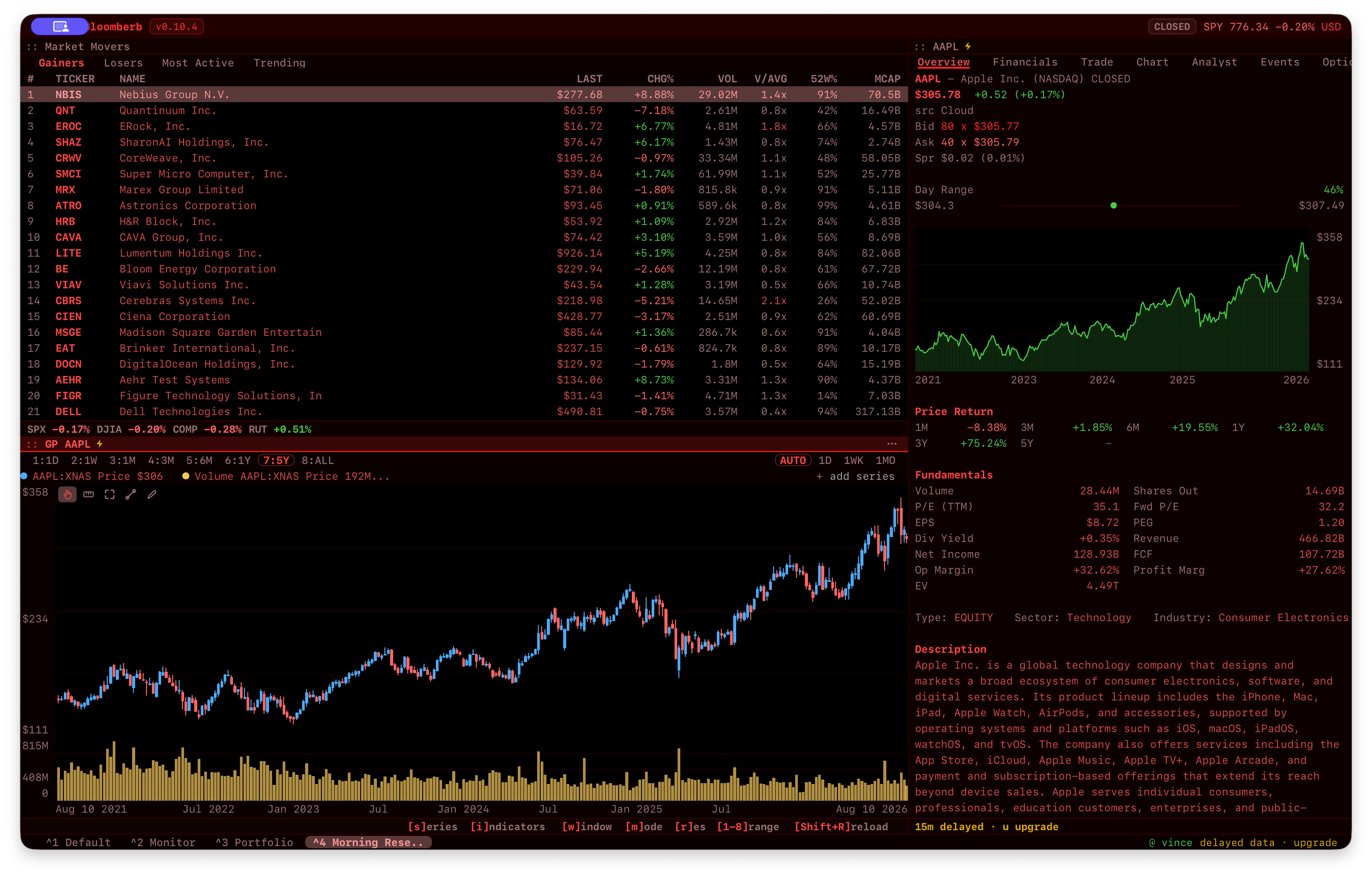
HELP opens in-app help. Next: a full workflow or the core concepts.