Your first 10 minutes
Gloom is a grid of screens you open by typing a short code and a ticker; in ten minutes you can set up your holdings, open a company, see what moves today, set an alert and find help.
- 5 min
- 3 questions
- Lesson 1 of 9
Why you would care
A terminal looks scary the first time: black screen, dense numbers, no big buttons. The secret is that you only need three things to start: one key (
Ctrl+P), a few codes (DES,PF,MOST), and a ticker. This lesson is a guided first session. Follow it once and the rest of the chapter will feel familiar.
The idea from scratch
Everything in Gloom is a function: a screen with a short code, usually 2 to 5 capital letters. DES describes a company. PF shows your portfolio. MOST lists the day's biggest movers.
Most functions take a ticker, the short code of a stock or fund (NVDA is NVIDIA). You type both together, like a sentence: verb, then object.
- Ctrl+P opens the command bar
- Type: DES NVDA
- Enter
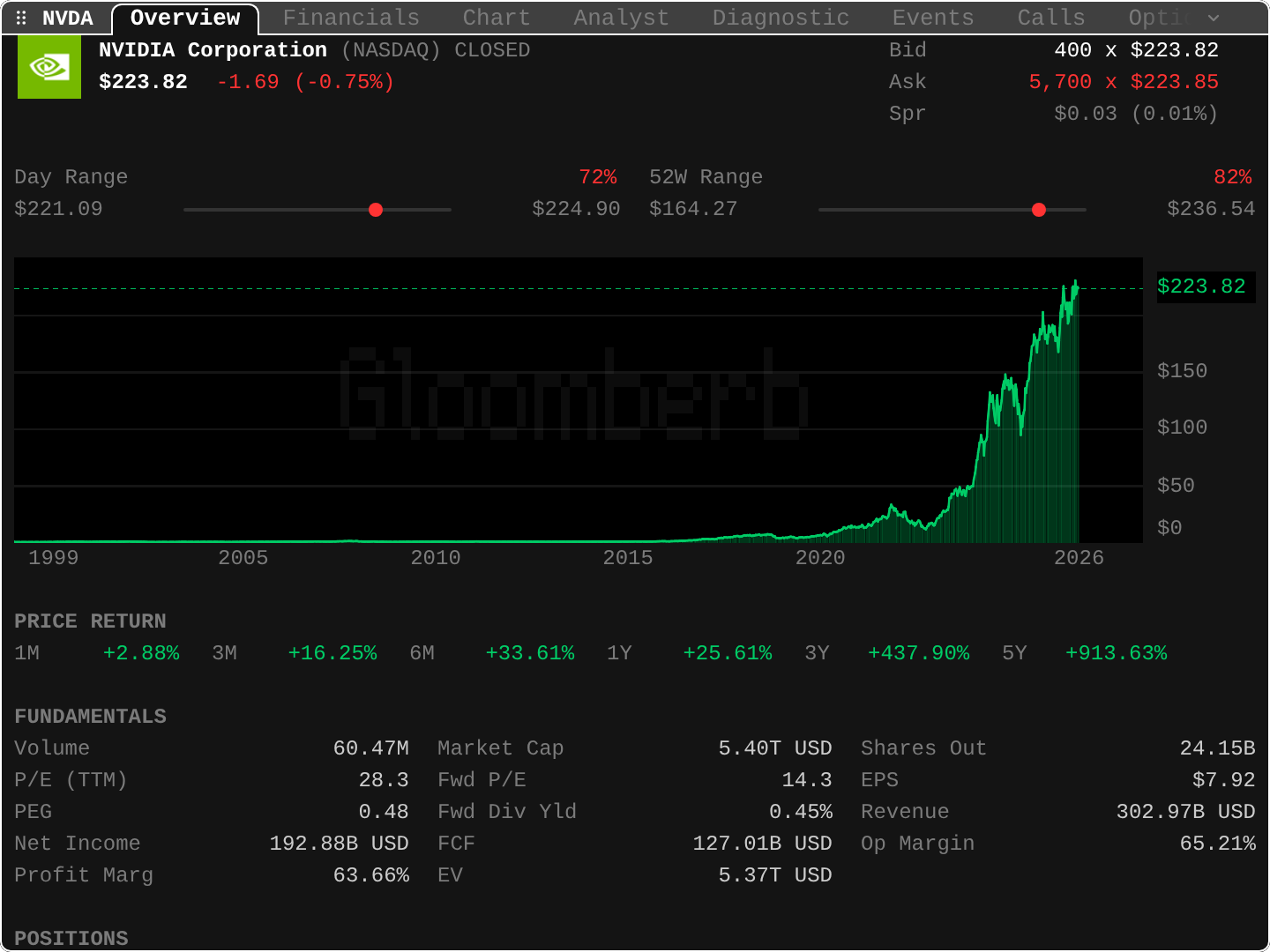
- A pane opens with NVIDIA's overview
Each function opens in a pane, a rectangle on screen. Many panes side by side make a layout. That is the whole model.
See it in Gloom
Minute 0 to 2: the first-run guide. The first time you open Gloom, a short guide asks what you hold (type a few tickers, or connect a broker) and "What do you trade?". That second question offers ready-made desks: Equities, Options, Futures & commodities, Rates & credit, FX & macro, Active trading. Each one you tick becomes a tab at the bottom of the screen. Ticking none is fine.
Minute 2 to 4: open a company. Press Ctrl+P (or Cmd+K / Ctrl+K in the desktop app), type DES NVDA, press Enter. In the pane above, look at, in order:
- The name and
(NASDAQ) CLOSED: which exchange, and whether it is trading now. $223.82 -1.69 (-0.75%): last price and change since yesterday's close.- The two range bars: where today's price sits inside the day's range and the year's range.
- The tabs on top (Overview, Financials, Chart...).
handlmove between them.
Minute 4 to 5: save what you care about. Type AW NVDA to add NVIDIA to your watchlist, or AP NVDA to add it to your portfolio. Then type PF to see the list.
Minute 5 to 6: what is happening today. MOST shows the top gainers, losers and most active stocks. TOP shows the top market stories, ranked.
Minute 6 to 7: an alert. Type SA NVDA above 240. Gloom will tell you when NVIDIA trades above $240. ALRT lists your alerts.
Minute 7 to 8: help. Press F1 on any pane: a help card says what the pane shows, its keys, and how fresh its data is. HELP opens the full help, with a "Start Here" list.
Minute 8 to 10: calendars. ERN shows upcoming earnings reports. ECO shows the economic calendar (jobs, inflation, central bank days).
Practice and recap
Try it3 tasks
- In the screenshot, find the exchange NVIDIA trades on and whether the market was open.
- Using the 52W Range bar: is NVIDIA nearer its 52-week low ($164.27) or high ($236.54)? (The bar says 82%: much nearer the high.)
- Write down, from memory, the codes for: company overview, your portfolio, the day's movers, a new price alert.
Common mistakes4 mistakes
- Typing the company name where a code is expected:
DES APPLEis not a ticker;DES AAPLis. The search will usually rescue you, but tickers are faster. - Thinking you broke something when prices stop moving. Outside trading hours, prices do not change (see
CLOSEDin the header). - Closing the first-run guide too fast and missing the desks. You can add them later with
DESK(see lesson: Layouts and desks). - Reading every number on screen. Start with name, price, change, range. The rest can wait.
Check yourself3 questions
- Which key opens the command bar?
- What do you type to see the overview page of Microsoft (ticker MSFT)?
- Which key opens the help card of the pane you are looking at?
Answers
Ctrl+P(in the desktop app alsoCmd+KorCtrl+K).DES MSFT, thenEnter.F1.
Words in this lesson7 words
- function
- a screen in Gloom with a short code, like
DESorPF - command bar
- the box where you type a function and a ticker;
Ctrl+Popens it - pane
- one rectangle on screen showing one function
- layout
- a saved arrangement of panes, one tab per layout
- desk
- a ready-made layout for one kind of market (equities, options...)
- watchlist
- a list of tickers you follow
- portfolio
- a list of what you own, with quantities and costs
Educational material about reading market data, not investment advice.